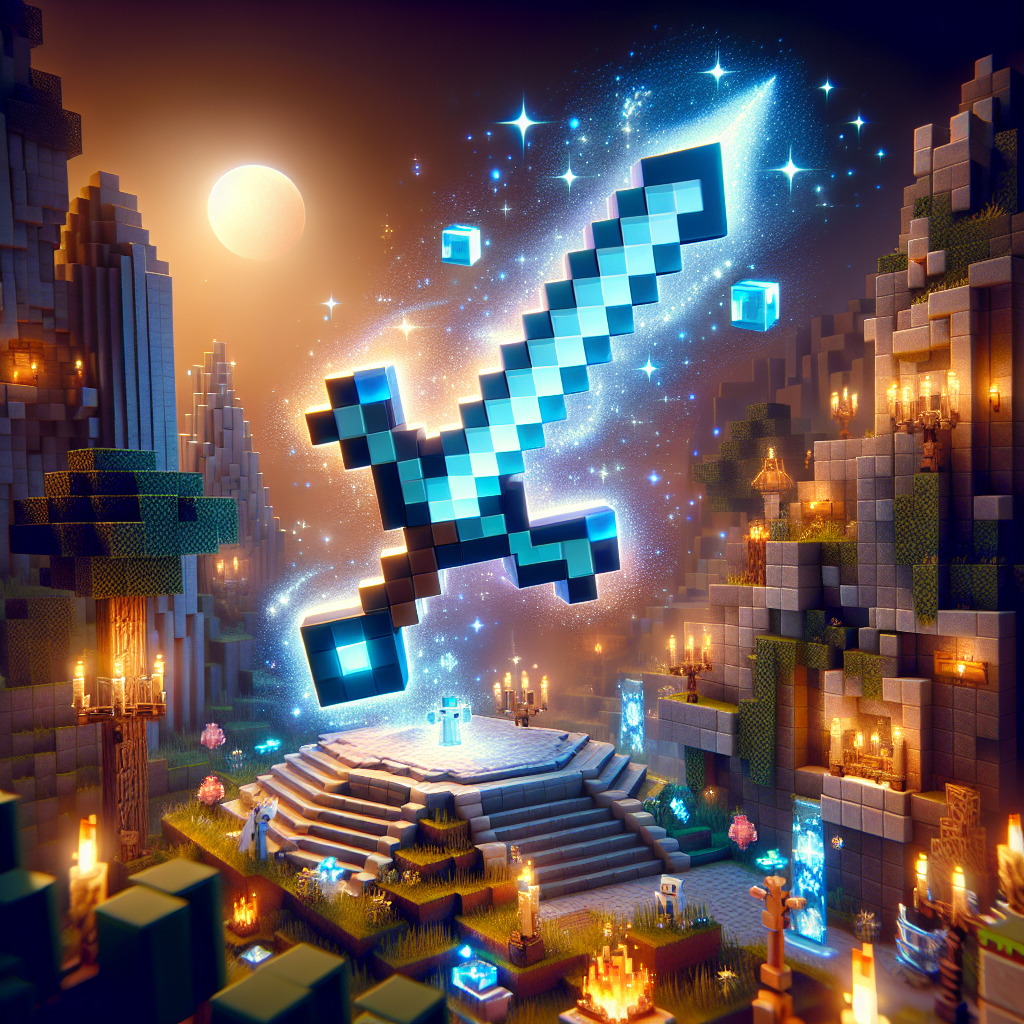
Minecraft, the iconic sandbox game developed by Mojang Studios, continues to capture the imagination of millions with every new update. As version 1.21 rolls out, players are eager to explore the new features and enhancements. This article provides a comprehensive, step-by-step guide on how to download Minecraft 1.21 on various platforms, ensuring that players can seamlessly start their new adventure.
Table of Contents
- Introduction
- What’s New in Minecraft 1.21?
- Prerequisites
- How to Download Minecraft 1.21 on PC
- How to Download Minecraft 1.21 on Console
- How to Download Minecraft 1.21 on Mobile
- Troubleshooting Common Issues
- Conclusion
- FAQs
Introduction
Minecraft, a game celebrated for its boundless creativity and blocky graphics, continues to evolve. The latest update, Minecraft 1.21, introduces exciting features that are sure to enhance the gaming experience. Whether you’re battling mobs or exploring new biomes, updating to the latest version ensures that you have access to all the new content and bug fixes.
What’s New in Minecraft 1.21?
Before diving into the download process, let’s take a quick look at what’s new in Minecraft 1.21:
- New Biomes: Discover fresh landscapes teeming with unique flora and fauna.
- Blocks and Items: Engage with new blocks that bring more functionality and aesthetics.
- Mobs: Encounter new creatures with distinct behaviors and abilities.
- Gameplay Enhancements: Experience improved mechanics, including crafting and building features.
- Bug Fixes: Enjoy a smoother gaming experience with numerous bug fixes enhancing overall stability.
Prerequisites
Before downloading the update, ensure you have:
- A stable internet connection
- Adequate storage space on your device
- A valid Minecraft account
How to Download Minecraft 1.21 on PC
Downloading Minecraft 1.21 on your PC is a straightforward process. Follow these steps to ensure a seamless update:
Step 1: Open the Minecraft Launcher
Ensure your Minecraft Launcher is up to date. If it’s not installed, download it from the official website.
Step 2: Log into Your Account
Enter your credentials to log into your Minecraft account through the launcher.
Step 3: Select ‘Latest Release’
Within the launcher, navigate to the drop-down menu on the left side of the ‘Play’ button. Select “Latest Release” to download Minecraft 1.21.
Step 4: Click ‘Play’
After selecting the latest release, click the ‘Play’ button to start downloading the update. The launcher will automatically install Minecraft 1.21.
How to Download Minecraft 1.21 on Console
For console gamers, downloading the latest version involves interacting with your respective platform’s digital store.
PlayStation:
- Turn on your PlayStation console.
- Navigate to the Minecraft game tile and press the ‘Options’ button.
- Select ‘Check for Update.’
- Follow any on-screen instructions to download and install the update.
Xbox:
- Power on your Xbox console and sign in.
- Go to ‘My games & apps.’
- Locate Minecraft, press the ‘Menu’ button, and select ‘Manage game & add-ons.’
- Click on ‘Updates’ to access the latest version.
Nintendo Switch:
- Start your Nintendo Switch console.
- Navigate to the Minecraft icon from the home menu.
- Press the ‘+’ button and select ‘Software Update’ followed by ‘Via the Internet.’
How to Download Minecraft 1.21 on Mobile
For mobile users playing Minecraft: Bedrock Edition, here’s how to update:
Android:
- Open the Google Play Store.
- Search for Minecraft in the search bar.
- If an update is available, the ‘Update’ button will be visible next to the game. Tap it to download Minecraft 1.21.
iOS:
- Launch the App Store.
- Tap on your profile icon at the top of the screen.
- Scroll to find Minecraft under ‘Pending Updates’ and tap ‘Update.’
Troubleshooting Common Issues
Insufficient Storage
If you encounter an error due to insufficient storage, try clearing some space by deleting unnecessary files or apps.
Connection Problems
Ensure that your device is connected to a stable and active internet connection to avoid download interruptions.
Update Not Showing
If the update isn’t appearing, try restarting your device or refreshing the digital store.
Conclusion
Updating to Minecraft 1.21 is a gateway to exciting new adventures and features. Whether you’re on PC, console, or mobile, this guide ensures a smooth transition to the latest version. Embrace the new biomes, challenges, and enhancements as you continue your Minecraft journey.
FAQs
1. Is Minecraft 1.21 a free update?
Yes, Minecraft 1.21 is available for free to players who already own the game.
2. Will my existing worlds be affected by the update?
Your worlds will generally remain intact; however, it’s always wise to back up your worlds before updating.
3. What if I encounter bugs in the new version?
Check the official Minecraft website or forums for patches and fixes that address new bugs.
4. Can I revert to an older version if I don’t like the update?
While possible, reverting to an older version can be complex and may cause compatibility issues with newer features or worlds. Proceed with caution.
By following this guide, you should be ready to dive into everything Minecraft 1.21 has to offer. Happy mining!
Related Posts
Mobile Legends: Traces of Origin and Domination in their home country
Mobile Legends: Traces of Origin and Domination in their home…
Creative Inspiration: Stunning Minecraft House Designs & Blueprints
Creative Inspiration: Stunning Minecraft House Designs & Blueprints Minecraft is…
Top Strategies for Mastering the Smite Enchantment in Minecraft
Minecraft, a globally popular sandbox game, offers players nearly limitless…